

Dressmaker guide · Build 410
How to move a Dressmaker save between Windows and Mac
Back up the original save folder first, locate the equivalent per-user game-data folder on the destination machine, copy the save while the game is closed, and test on a duplicate before replacing anything.
01 / Prerequisites
Check these before you start
- OKOwn the game on both desktop systems.
- OKClose Dressmaker completely on both machines.
- OKKeep a separate copy of the original save and note whether Steam Cloud is enabled.
02 / Steps
Follow the workflow in order
- 01
Use Steam Cloud first when possible
Steam Cloud is listed as a supported game feature. If both machines use the same Steam account and the save has synchronized successfully, cloud transfer is safer than manually replacing files.
- 02
Back up the source save
Copy the active save folder to a dated archive outside the game directory. Do not move the original yet, and keep the backup until the destination save has been tested.
- 03
Find the destination user-data folder
Community documentation identifies Windows and Mac saves under per-user application-data paths. Confirm the folder contains the expected save files before writing and account for version or filename differences.
- 04
Copy while the game and cloud sync are quiet
Close both clients completely. If the folder is still changing, pause or disable cloud synchronization for one client until the manual copy is complete, then re-enable it and choose the correct local version.
- 05
Launch and inspect the destination
Open the transferred copy and verify the current commission, gold, measurements, unlocks, and inventory. Keep the source backup until all of those values are present.
03 / Common mistakes
Avoid wasted time and materials
Deleting the source save before the destination copy is verified.
Leaving Steam Cloud enabled while deliberately replacing files, then allowing an older cloud copy to overwrite the transfer.
Copying while Steam Cloud or the game is writing files.
Assuming a community path is valid for every future game build without checking the actual folder.
04 / Continue
Open the connected systems
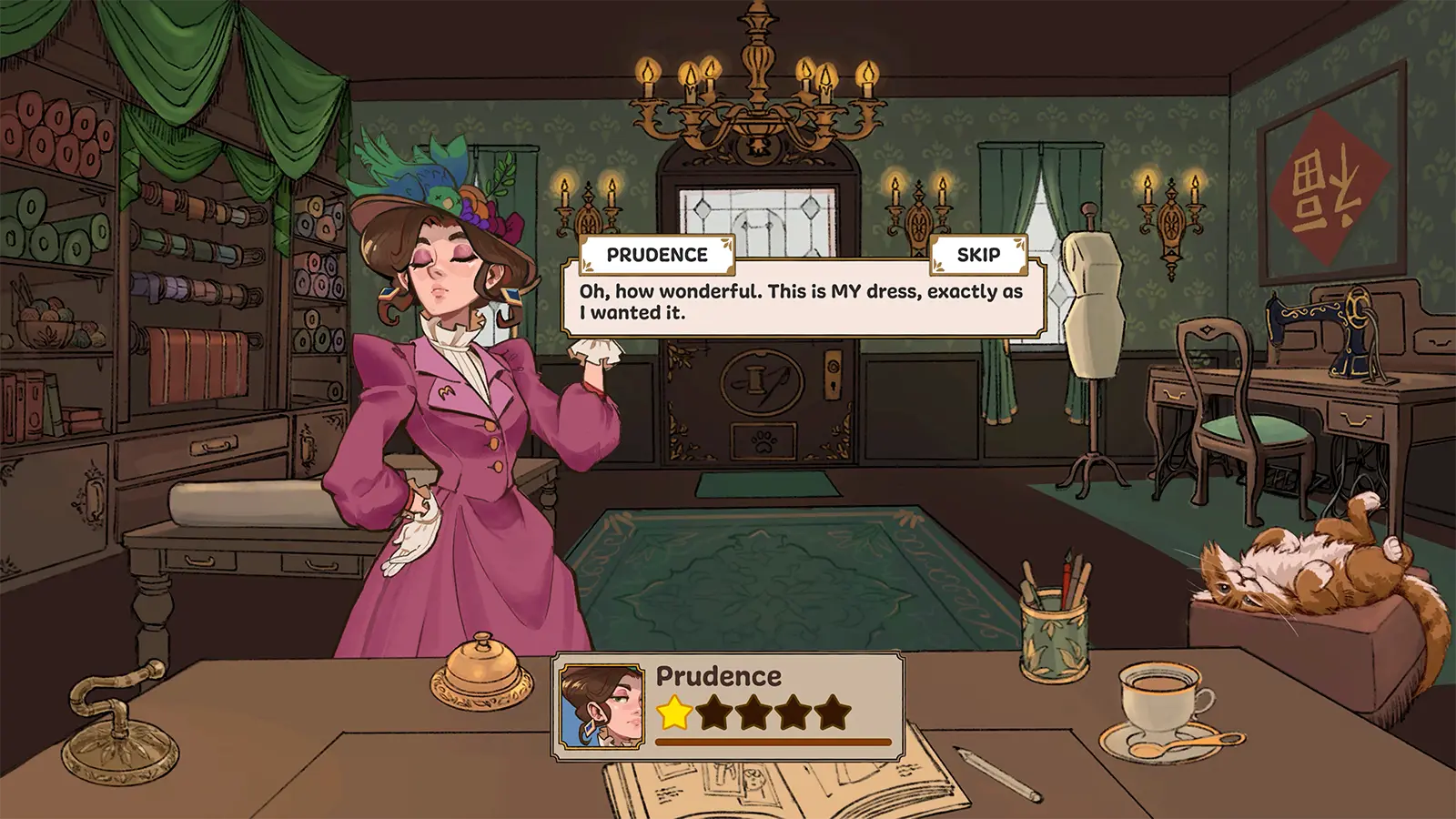
Commission Requirements
Every commission combines a brief, budget, and visible tag targets. Treat those targets as the final checklist rather than choosing materials by color alone.
Open player answer ->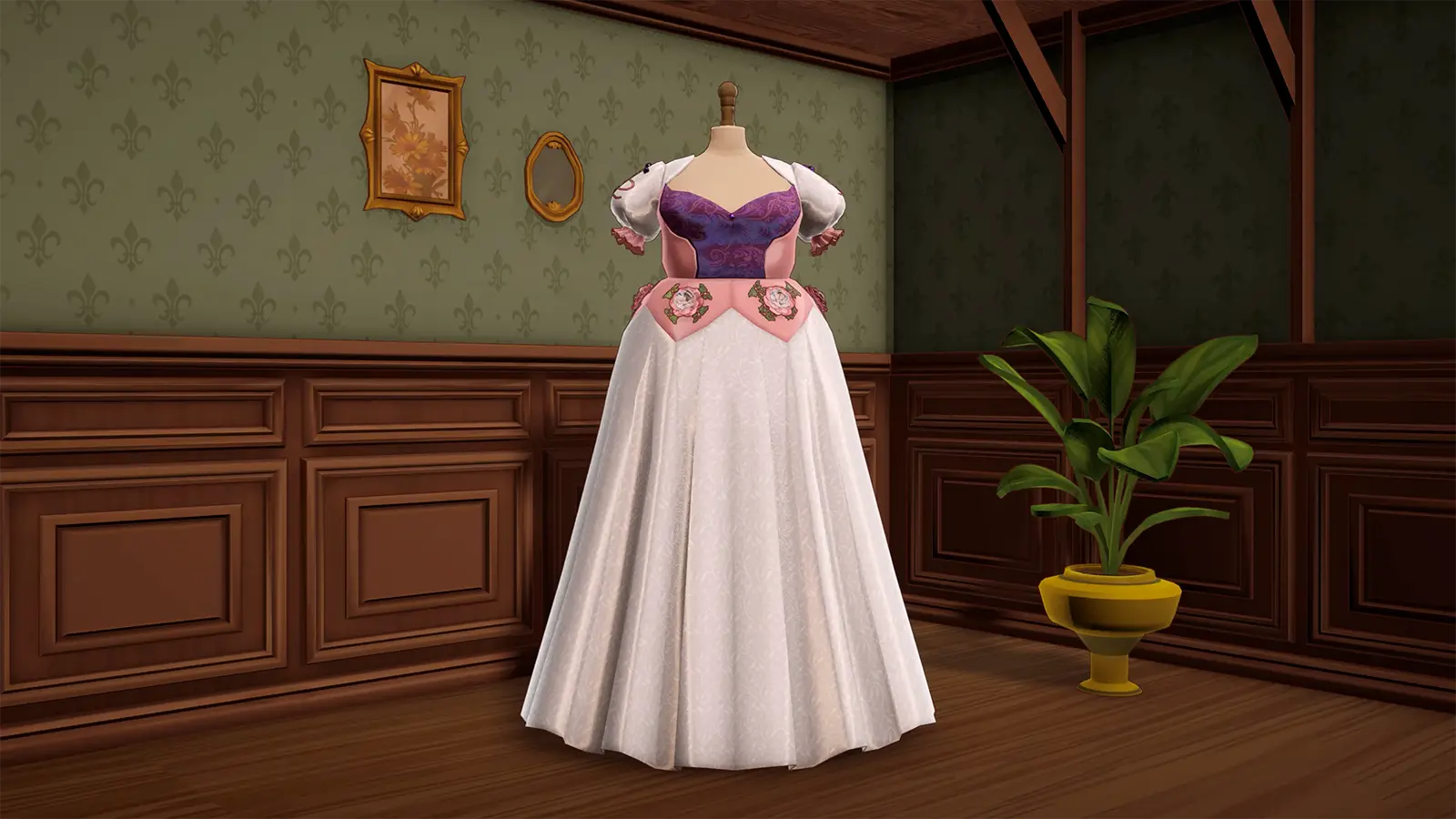
Off-the-Rack Sales
Off-the-rack designs are uncommissioned dresses made for the shop. Selling them gives a repeatable way to turn spare fabric and spare time into gold.
Open player answer ->